The PV Forecast is your daily solar dashboard. It pulls live weather data for your location and turns it into actionable advice: when to run heavy appliances, how much your panels will generate today, and whether your battery will last through the night.
This guide walks you through every section of the forecast page.
The Now Card
The first thing you see is a real-time status summary at the top of the page.
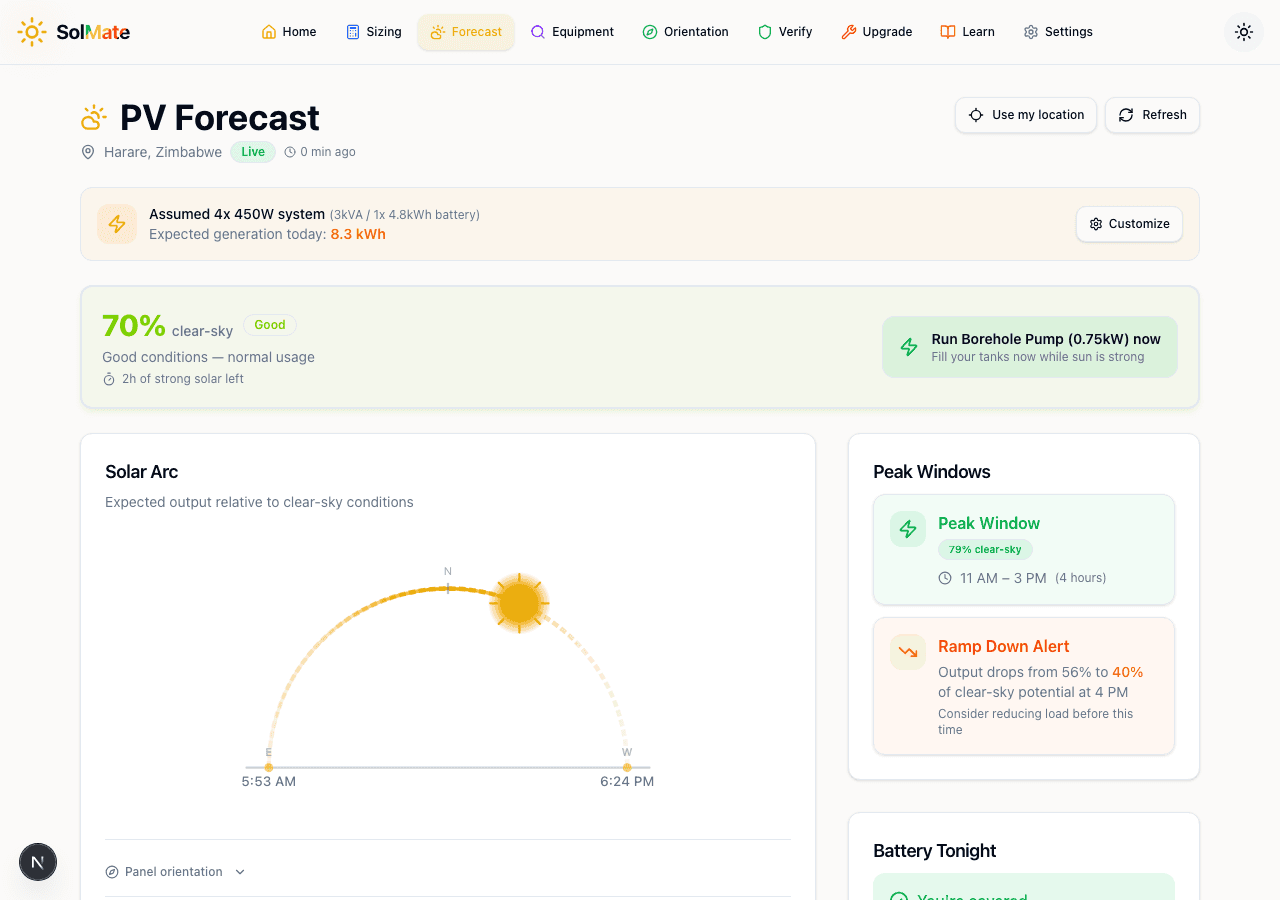 The forecast overview showing system status, solar arc, and peak windows
It tells you three things at a glance:
- Current output as a percentage of clear-sky potential (e.g. "70% clear-sky") with a colour-coded badge — Peak, Good, Moderate, Low, or Minimal
- Time remaining for strong solar (e.g. "2h of strong solar left")
- Next best action — a specific recommendation like "Run Borehole Pump now" based on current conditions
If you've configured your system in Settings, it also shows your assumed system size and expected generation for the day (e.g. "8.3 kWh today").
The "clear-sky" percentage compares actual conditions against a perfectly clear day. 70% means clouds or haze are reducing output by about 30%. On a cloudless winter morning you might see 90%+ even though total kWh is lower than summer — it's about today's potential, not absolute output.
The Solar Arc
Below the Now Card is a visual arc showing the sun's path across the sky for today. Sunrise and sunset times are marked at each end, and a sun icon shows the current position.
The arc's colour represents output quality — green sections are peak production, yellow is moderate, and the curve itself shows expected output relative to clear-sky conditions throughout the day.
This is useful for planning: if the arc shows strong green through early afternoon but drops off sharply at 3 PM, that's your window for heavy loads.
Peak Windows
To the right of the solar arc, the Peak Windows panel highlights the best time blocks for running appliances.
Each window shows:
- Time range (e.g. 11 AM – 3 PM)
- Duration (e.g. 4 hours)
- Clear-sky percentage during that window
If output is about to drop sharply, you'll see a Ramp Down Alert in orange — for example, "Output drops from 56% to 40% at 4 PM." This warns you to finish heavy loads before the drop.
Peak windows update throughout the day. Check back after lunch — the afternoon window may have shifted if weather changed.
PV Gauge and Current Conditions
The large circular gauge shows your current PV output as a percentage, colour-coded from green (good) to red (minimal). Below it you'll find current conditions:
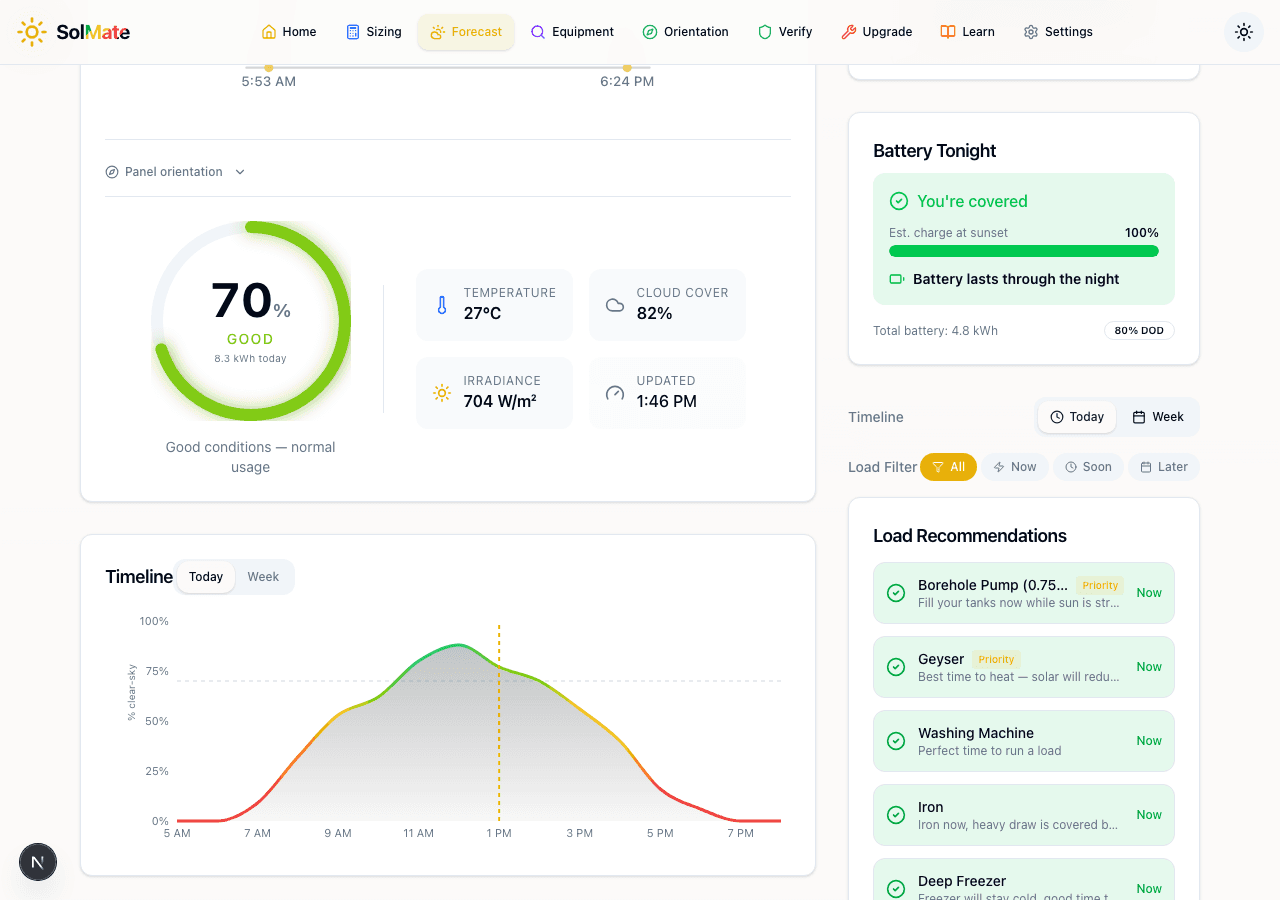 The PV gauge, current conditions, timeline chart, and load recommendations
- Temperature — affects panel efficiency (panels produce less in extreme heat)
- Cloud cover — percentage of sky covered
- Irradiance — the actual solar energy hitting the ground (W/m²)
- Last updated — when the forecast was last refreshed
If your system is configured, the gauge also shows estimated kWh for the day inside the circle.
The Timeline
The Timeline chart is the heart of the forecast. It shows hour-by-hour output for today as a smooth curve, with the green area representing expected production and the orange/red line showing the clear-sky maximum.
Switch between Today and Week tabs:
- Today — hourly resolution, best for planning your day's loads
- Week — daily totals, useful for spotting upcoming cloudy days when you might want to pre-charge batteries or shift heavy usage
The gap between the green curve and the red line shows how much cloud cover or weather is costing you at each hour.
Battery Tonight
If you've configured a battery in Settings, the Battery Tonight card predicts whether your battery will last through the night.
It shows:
- Estimated charge at sunset (percentage)
- Whether the battery lasts through the night (green tick or warning)
- Total battery capacity and depth of discharge
This is particularly useful during load-shedding — if the forecast shows your battery won't make it through the night, you know to conserve power in the evening or charge from the grid before sunset.
Load Recommendations
The Load Recommendations sidebar is one of the most practical features. It lists your household appliances and tells you when to run each one:
- Now (green) — conditions are right, run it now
- Soon (yellow) — conditions will be right shortly
- Later (grey) — wait for better conditions
- Avoid (red) — don't run this on solar today
Each recommendation includes a brief explanation — for example, "Borehole Pump: Fill your tanks now while sun is strong" or "Geyser: Best time to heat — solar will reduce grid draw."
Priority items are flagged so you can see which loads to schedule first.
The load recommendations update in real time. If you check at 9 AM and the washing machine says "Soon", check again at 10 AM — it might have changed to "Now" as conditions improved.
Daily Planner
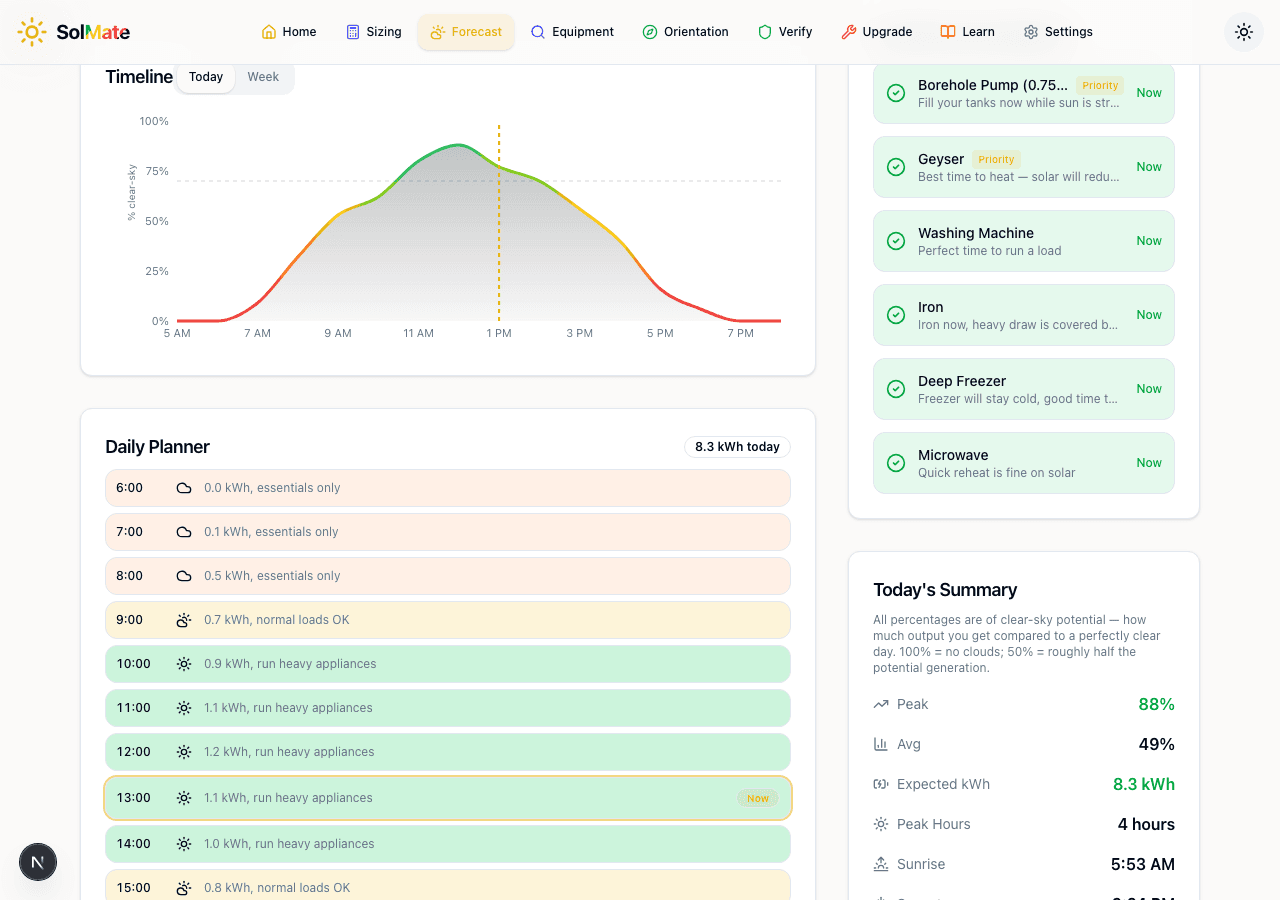 The daily planner and today's summary
The Daily Planner breaks the day into hourly slots and shows what's feasible at each hour:
- Early morning (6–8 AM) — "essentials only" (low output, panels warming up)
- Mid-morning (9–10 AM) — "normal loads OK"
- Peak hours (10 AM – 2 PM) — "run heavy appliances" (highlighted in green)
- Afternoon (3–5 PM) — "normal loads OK" to "essentials only" as output drops
Each row shows the estimated kWh available at that hour. This is the schedule you want to follow for maximum solar self-consumption.
Today's Summary
The Today's Summary card gives you the key numbers for the day:
| Metric | What It Means |
|---|---|
| Peak | Highest clear-sky percentage reached today |
| Avg | Average output across all daylight hours |
| Expected kWh | Total generation estimate for the day |
| Peak Hours | Number of hours above the "good" threshold |
| Sunrise / Sunset | Daylight window |
These numbers help you compare days. If yesterday's average was 65% and today's is 40%, you know it's a significantly cloudier day and should plan accordingly.
Panel Orientation
A collapsible section lets you adjust the azimuth (compass direction) and tilt angle of your panels. The forecast recalculates output based on these values.
If you've already set your orientation using the Panel Orientation tool, these values carry over automatically. Otherwise, the defaults assume a north-facing roof at 20° tilt — reasonable for most Zimbabwe installations.
Getting the Most From the Forecast
Here's the workflow that makes the forecast most useful:
- Check the Now Card first thing in the morning — see what kind of solar day it is
- Look at Peak Windows — plan your heavy loads around these times
- Follow Load Recommendations — let SolMate tell you what to run and when
- Check Battery Tonight before sunset — know if you need to conserve
- Use the Weekly view on Sunday — plan the week's laundry, ironing, and borehole schedules around the best days
The forecast is most accurate for the current day and becomes less precise further out. Use the weekly view for general planning but rely on the daily view for specific load scheduling.
PV Forecast
See today's solar output and the best times to run loads.